

Drafts and versions
Each publication is a series of versions. You edit a version as a draft, and it becomes public when you publish it. To change a published publication, publish a new version. Every change, even a typo fix, is published as a new version.
Start a new version
Open the publication and click Edit in its header. This opens a draft of the next version, with the content and details of the current one. If a draft of the next version already exists, Edit opens that draft instead.
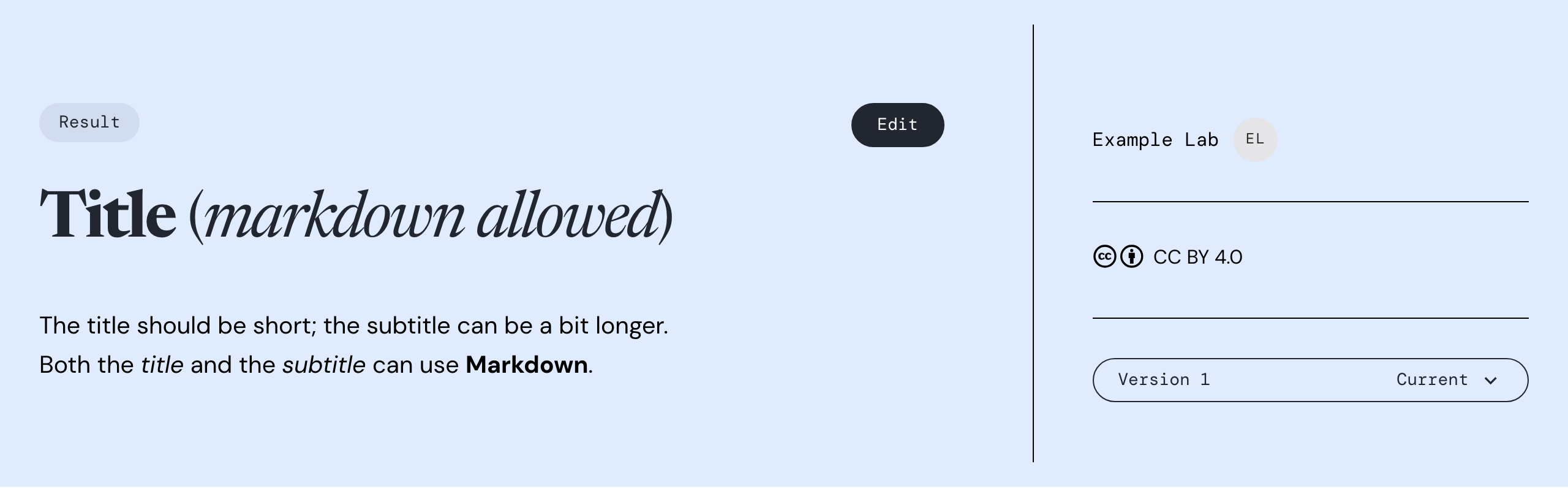
Figure 1:Click Edit to start a new version.
Make your changes on the draft. Changes to both the content and the details ship with the next version.
A new version needs a version description that says what changed and why. Readers see it in the version history.
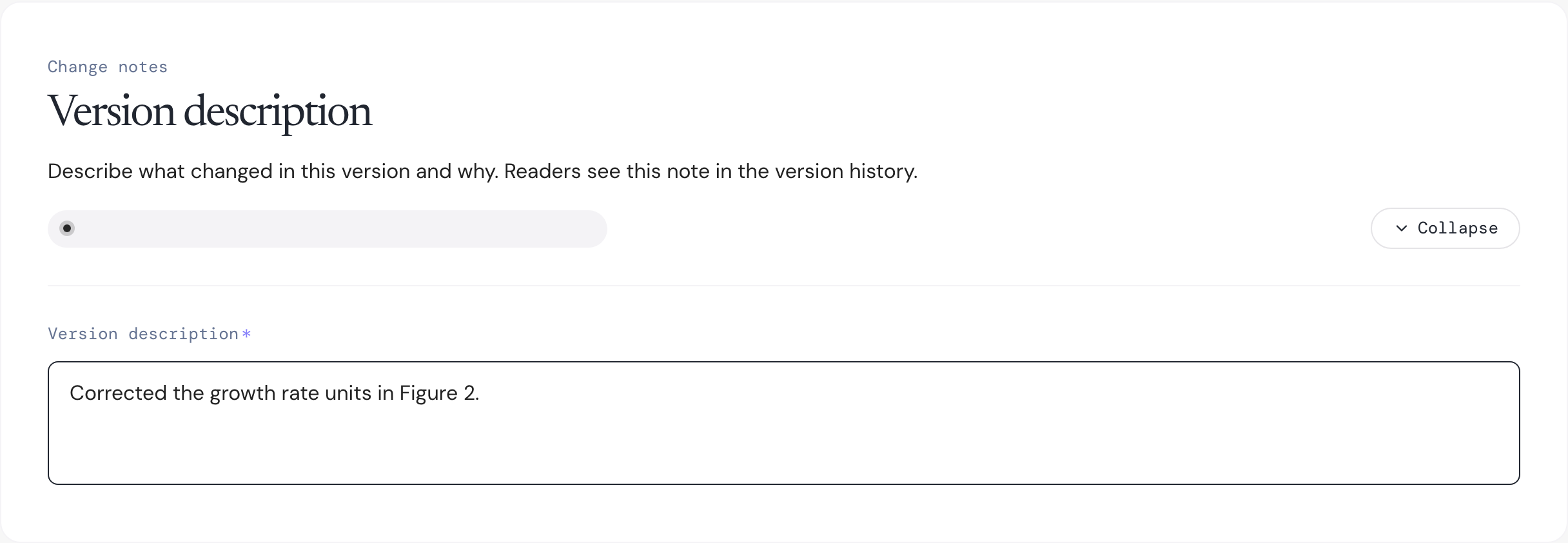
Figure 2:Describe what changed in the Version description section.
When you are ready, click Release new version… at the bottom of the draft.

Figure 3:Click Release new version… when you are ready.
The version description is filled in as the release note. Confirm that all byline authors have consented to the release, and click Release new version.
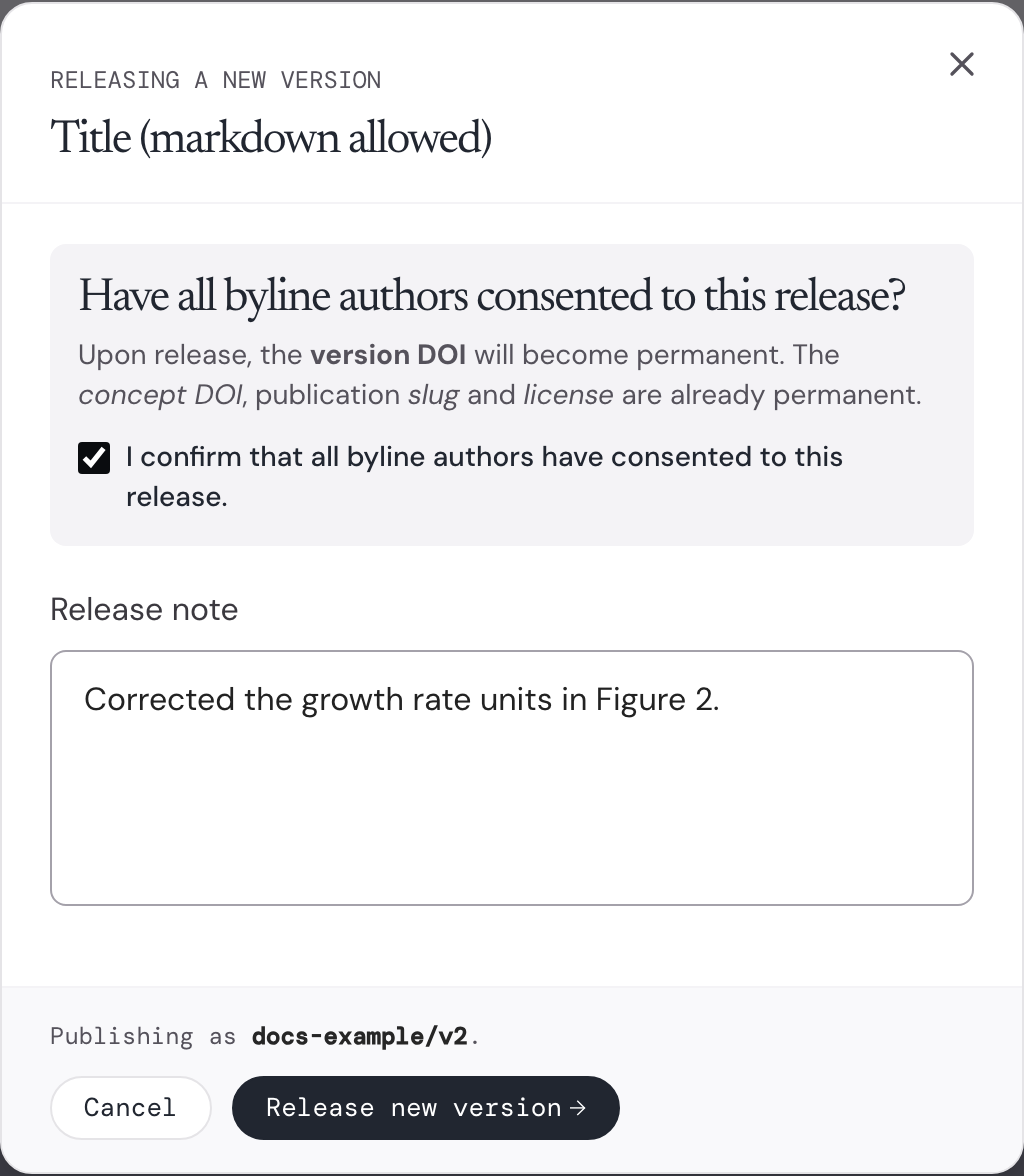
Figure 4:Confirm that the byline authors consent, then release the new version.
The slug and license of a publication can’t change after its first release, and neither can its concept DOI. Releasing a new version makes its version DOI permanent.
How DOIs work
If your organization has DOI minting turned on, each publication gets two kinds of DOI:
Concept DOI: one for the publication as a whole. Its metadata updates only when you publish a new version, not while you edit a draft.
Version DOI: one per version, formed by adding
.Nto the concept DOI, like10.82153/pff0-ck46.2. Version DOIs are shown in the version dropdown.
DOIs are reserved as drafts while you work, and become public when you publish.