

The Stacks is a platform for scientists to communicate their research to an audience of peers and is designed to be freely accessible without restrictions. Commenting is the only feature for readers on The Stacks that requires an account.
Sign up / Log in

Figure 1:You need an account if you want to comment.
You can create an account by clicking on Sign up and providing the following:
username
email
first name(s)
last name(s)
password
Subsequently, you can log in by using your username or email and password.
User account settings
Once you have an account, you can update your name, set an avatar, or link your account to your ORCID iD from the account settings page, accessed from your avatar in the navigation bar.
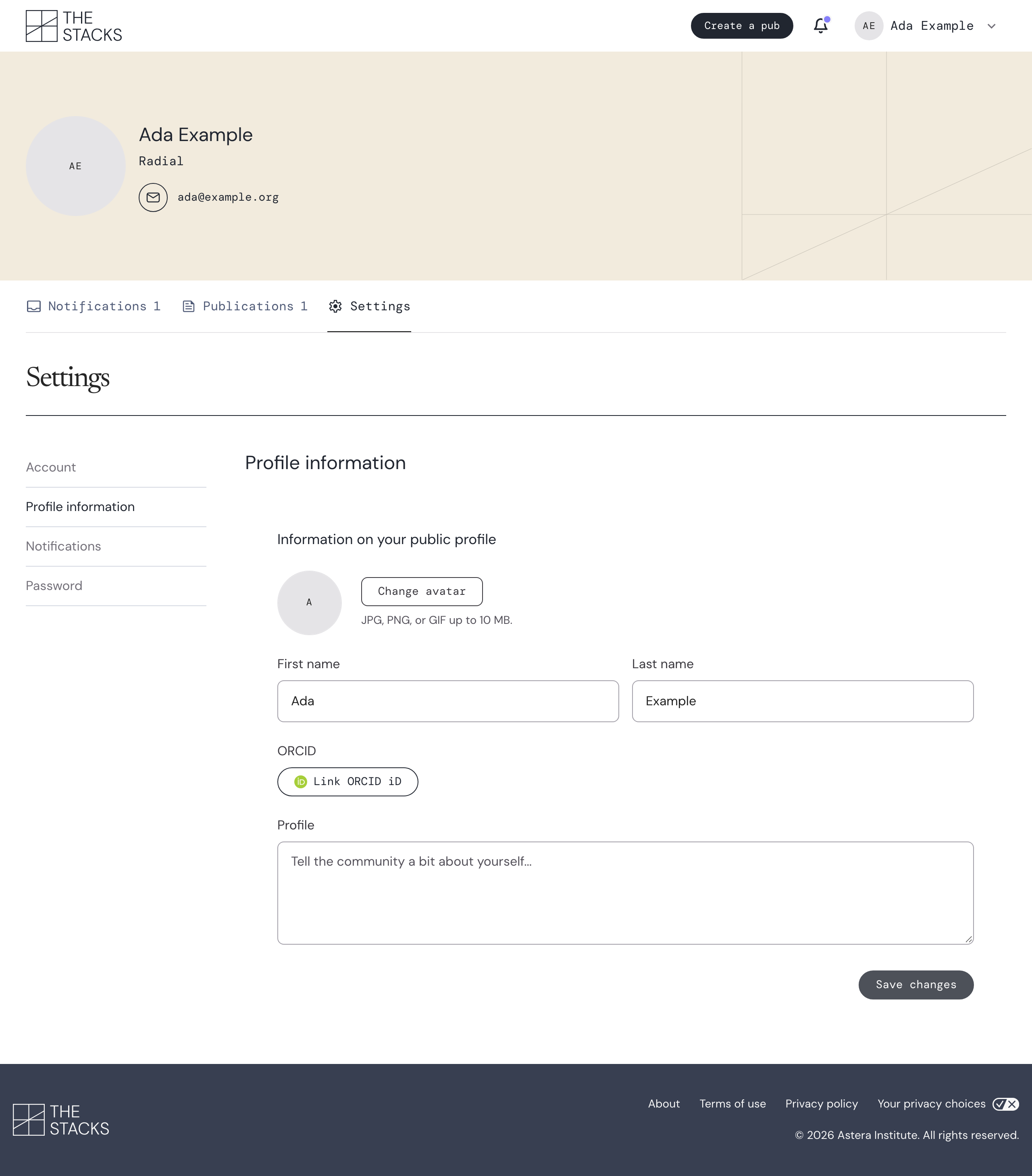
Figure 2:You can set your name and avatar, and link to ORCID from the settings page.
Comment on a publication
On The Stacks, review happens out in the open, in the comments section. The comments section of Stacks publications can lead to deep and insightful discussions, and we encourage you to participate!
Comments can include basic styling and support images as well.
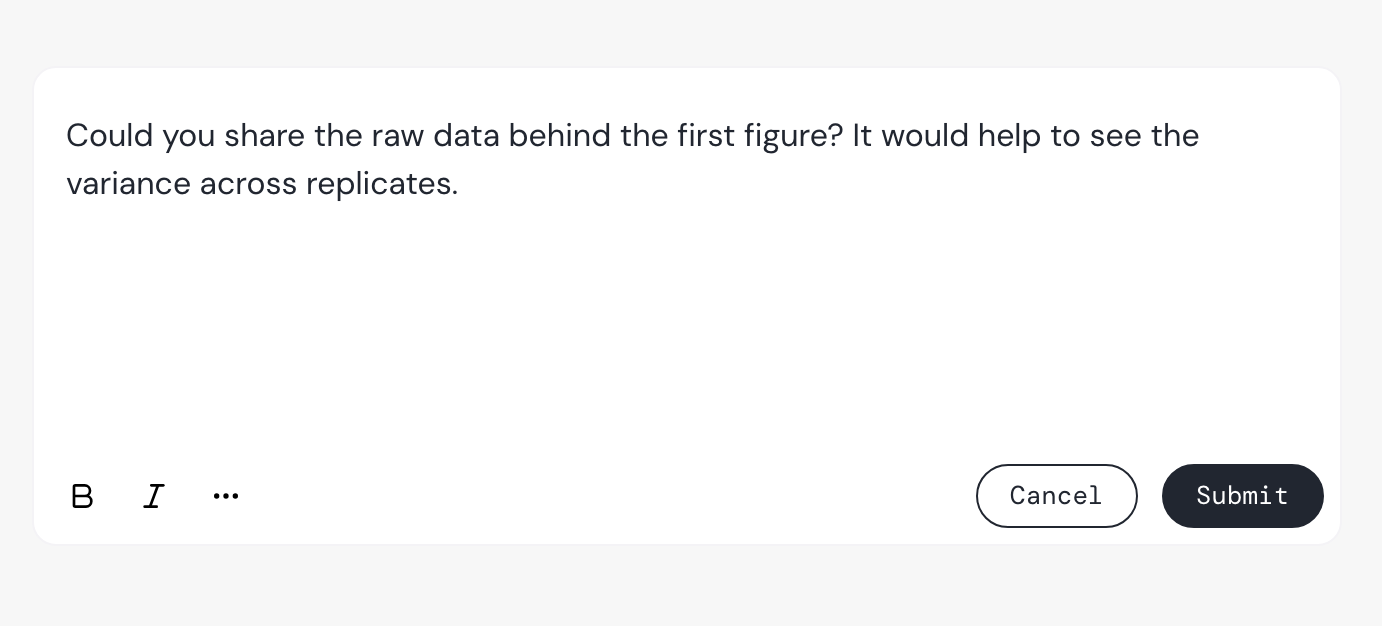
Figure 3:Type your comment into the comment form. The menu at the bottom of the form gives you access to styling options.
Since comments are part of the scientific record, we handle edits and changes differently from what you might be familiar with on other sites.
Editing comments
We realize that you might want to change the wording of a comment after you have made it, so we do permit edits to comments, but with restrictions.
From the three-dot menu beside your comment, you can select an option to edit your comment. The comment can be changed within 1 hour of posting. Once that time is up, the comment is locked, and editing is no longer allowed.
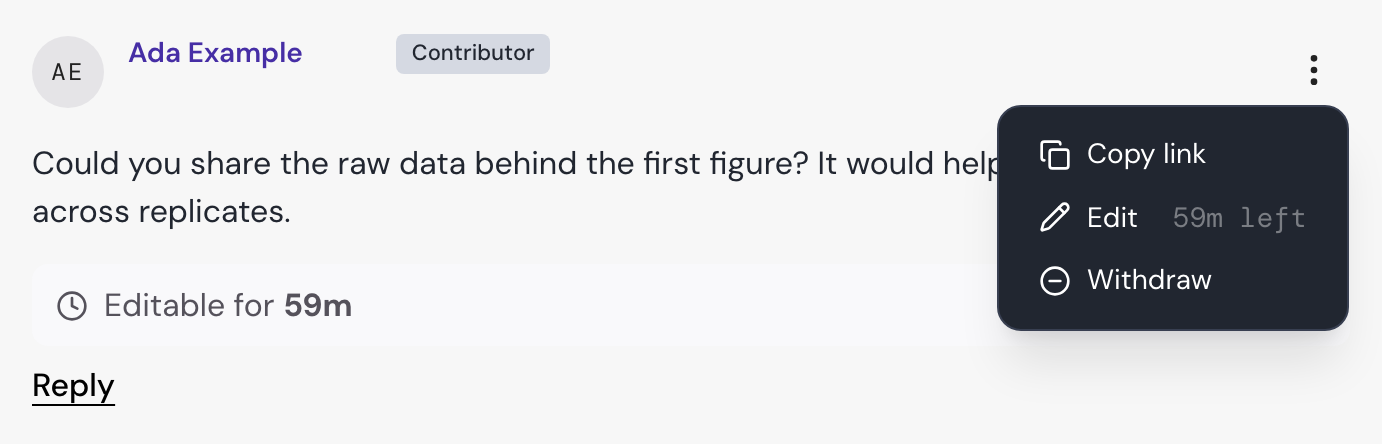
Figure 4:Access Edit and Withdraw from the three-dot menu.
Another restriction we make is that comments that have been replied to can no longer be edited. These restrictions are in place to ensure that the scientific record remains reliable. why?
Withdrawing a comment
We allow withdrawing of comments at any time, for any reason. This option is available in the three-dot menu beside your comment.
Once a comment has been withdrawn, a placeholder indicating that a comment was withdrawn remains in the comment thread, and the comment can no longer be identified with an author. why?
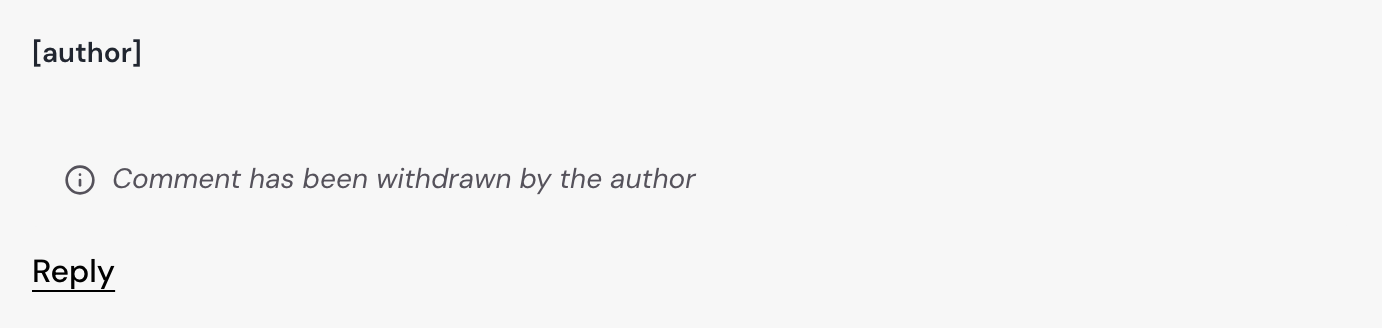
Figure 5:Withdrawn comments are not associated with any user.
We discourage withdrawing comments except as a last resort. If it is possible, the better way to correct something in a comment is with a follow-up comment that clarifies, though we recognize that this is not always appropriate or possible.
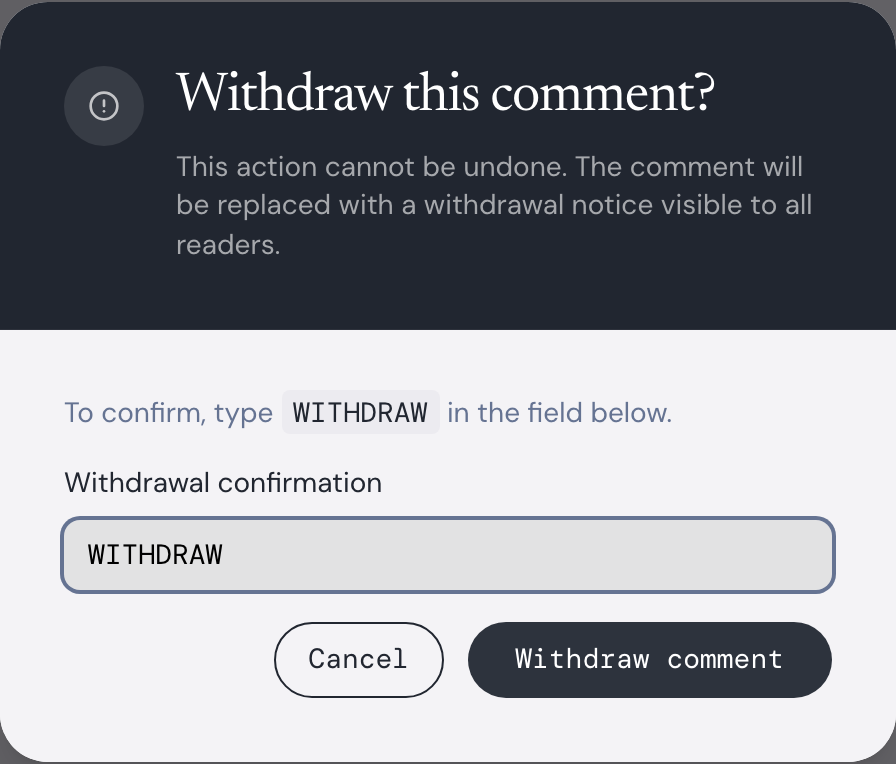
Figure 6:Confirmation is necessary to withdraw a comment.
Notifications
You are notified when someone comments on something you are involved with. For most readers, that means a reply to one of your comments.
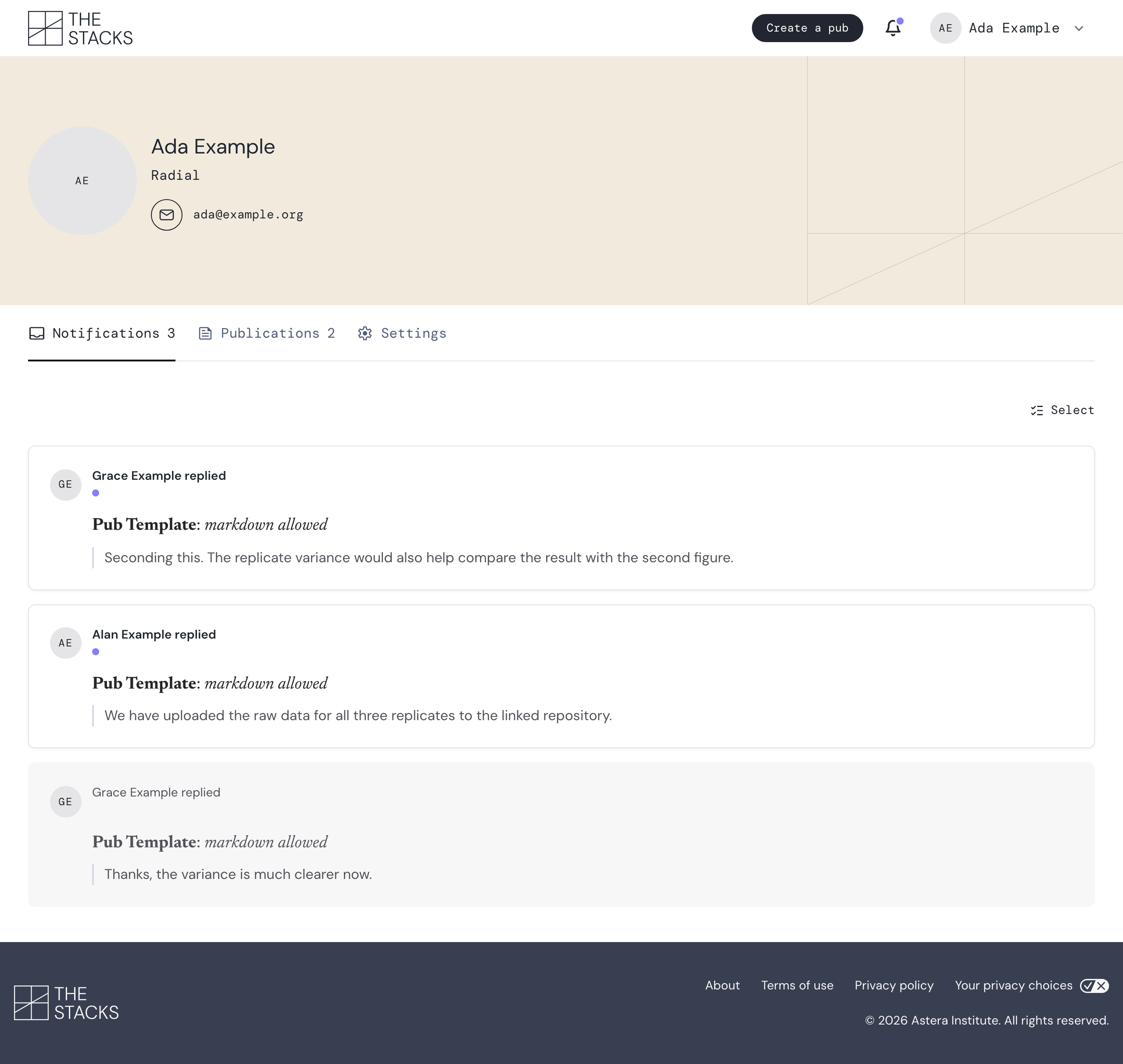
Figure 7:Your notifications are shown on the Notifications tab of the account settings page, which is directly reachable from the bell icon in the navigation bar.
Notifications can be sent by email and shown in the app. On your account settings page, you can control how you receive notifications.
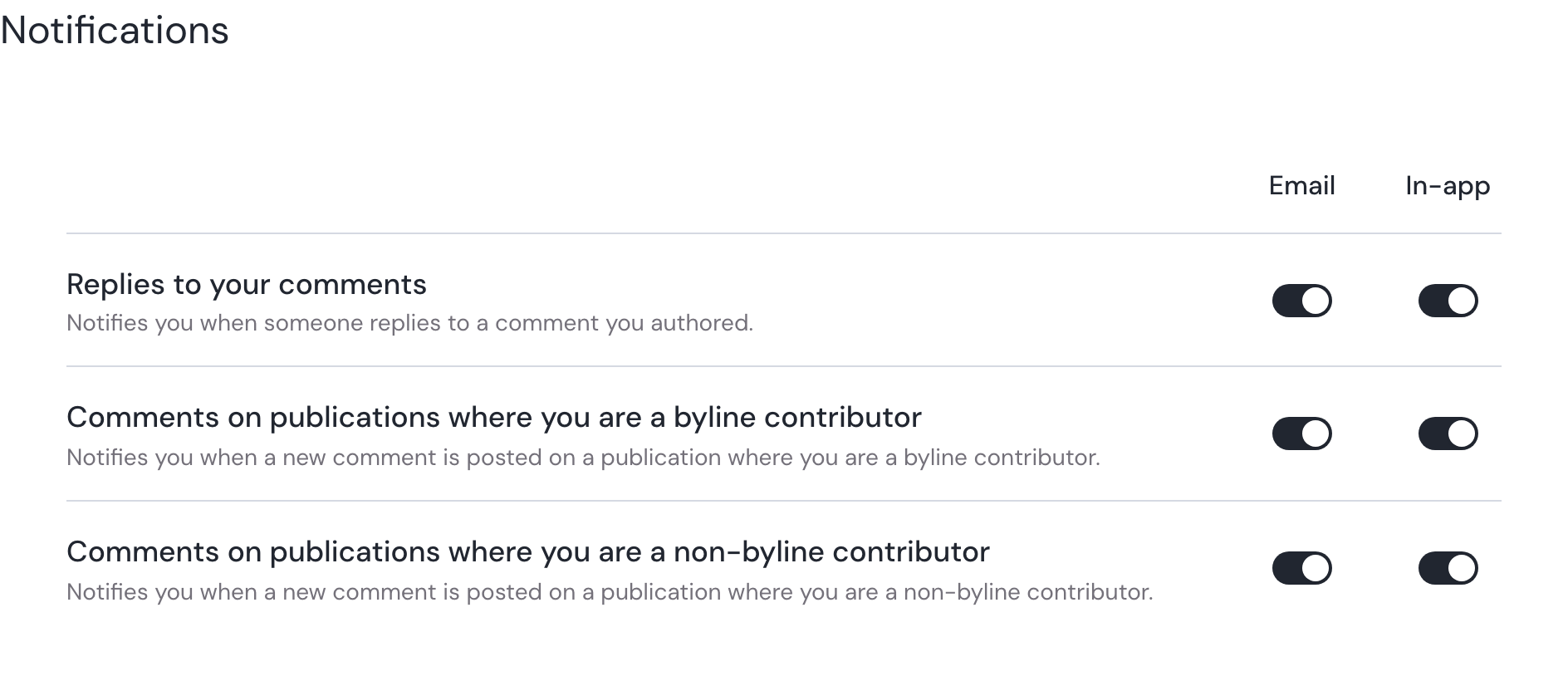
Figure 8:You can turn email and in-app notifications on or off for each type of notification on the account settings page.