

Before you import, format your Google Doc and add your citations. After importing, preview the publication and fix any formatting issues before publishing.
Importing from Google Docs
The Stacks draft interface only accepts Google Doc URLs.
Set your Google Doc share permissions to Anyone with the link as Viewer.
Copy the shareable URL of your finalized publication.
Click Create a pub in the navigation bar, paste the URL, and click Import.
Previous drafts will appear in the Your unfinished Pubs section.
Filling in publication fields
Once your publication is uploaded and reformatted, fill in each field:
| Field | Description |
|---|---|
| Slug | A short identifier used in the URL. Example: result-raman-mapping-algae → thestacks.org/publications/result-raman-mapping-algae. Letters, numbers, and hyphens. You can change it until you first publish. |
| DOI | Minted if your organization has DOI minting turned on. See Versions and DOIs. |
| Title | Scholarly publication title — a declarative statement of what the work is. |
| Subtitle | Appears in smaller text below the title; a phrase or sentence of impact. |
| Abstract | Renders in The Stacks as Purpose. A succinct framing: “This work introduces/investigates/evaluates…” Equivalent to an eLife assessment or an editor’s note at the top of a traditional journal. |
| Body | Where your Google Doc content renders. |
| License | CC BY (derivative work must credit the publication) or CC0 (completely open). |
| Contributors | See below. |
| Community | The organization that is the home of the publication, such as Radial. Its members are notified when you release. |
| Tags | See below. |
| Additional Assets | Link to code, data, or other associated materials. |
| Feedback form | Optional link to a feedback form relevant to your work, or leave blank. |
The contributors, license, and community are set in the Details section of the draft.
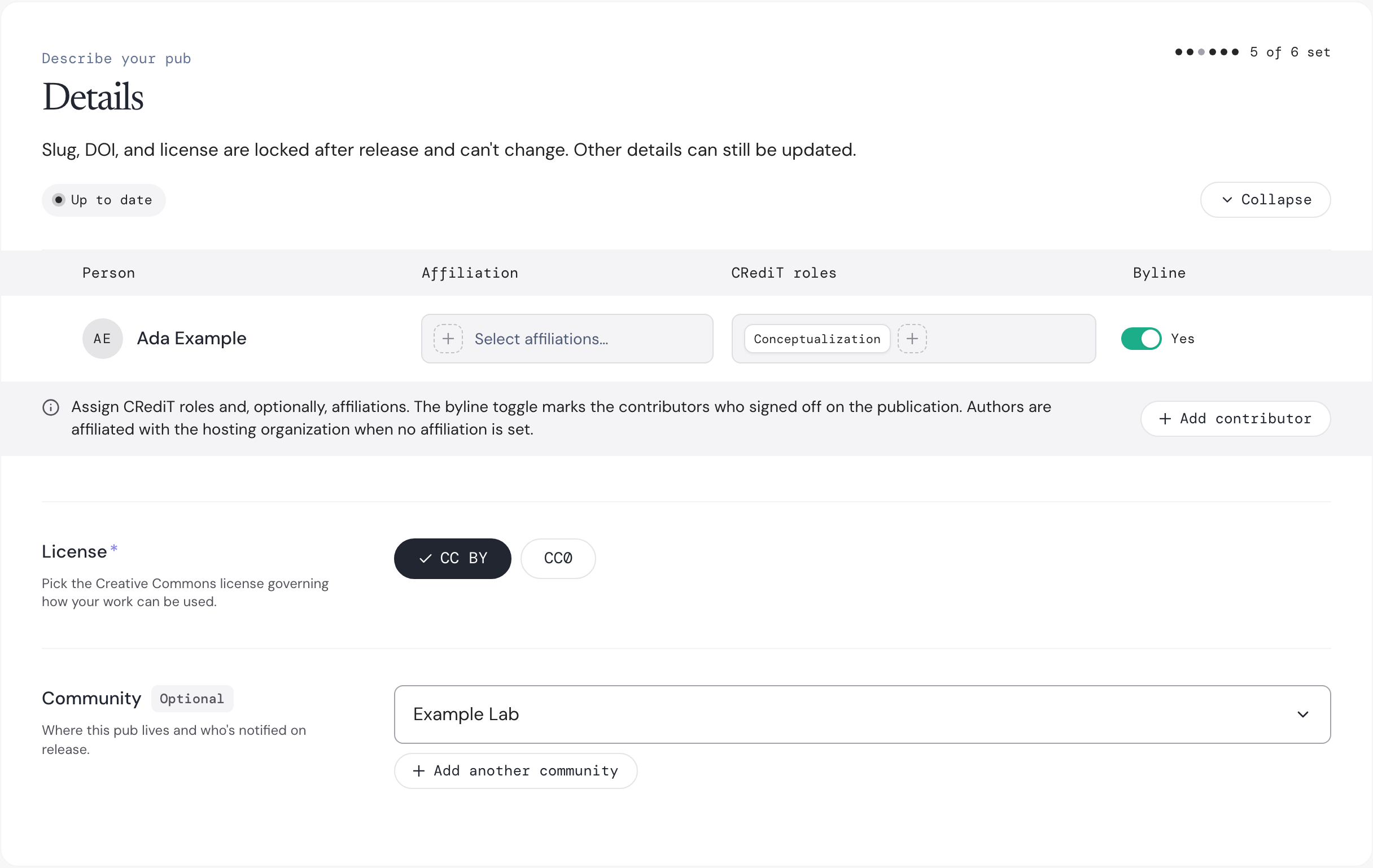
Figure 1:The contributors, license and community in the Details section of the draft.
Pick the community from the Community menu. If the work belongs to more than one community, click Add another community.

Figure 2:Pick the community that will be the home of the publication.
Pick the license from the License field.

Figure 3:Pick CC BY or CC0.
Contributors and byline authors
Contributors follow the CRediT taxonomy for contributor roles. Not all roles appear on the publication byline.
Contributors include all people who worked on the publication, even in a minor or peripheral role. They receive credit but may not be deeply familiar with the work as a whole.
Byline authors are a subset of contributors whose names appear in the citation and are indexed on Google Scholar. They are generally those “responsible” for the publication — accountable if questions about quality arise.
Contributor and byline authorship will be defined by the senior corresponding author.
Click Add contributor to add each contributor, pick their CRediT roles, and turn on Byline for the byline authors.

Figure 4:Each contributor has an affiliation, CRediT roles, and a Byline toggle.
Tags
Tag each publication with its Pub Type: Dataset, Idea, Resource, Method, Negative data, Informative failure, Observation, Open question, Result, or Perspective.
Optionally tag it with
Feedback wanted.
Your organization may have its own tagging rules.
For example, Radial’s PRISM program also tags every publication with Prism.
Release / publish
When every required field is filled in, the Release publication… button at the bottom of the draft becomes available. If something is still missing, a list above the button tells you what to fix.

Figure 5:Click Release publication… when you are ready.
Click Release publication…, confirm that all byline authors have consented to the release, optionally add a release note, and click Release publication.
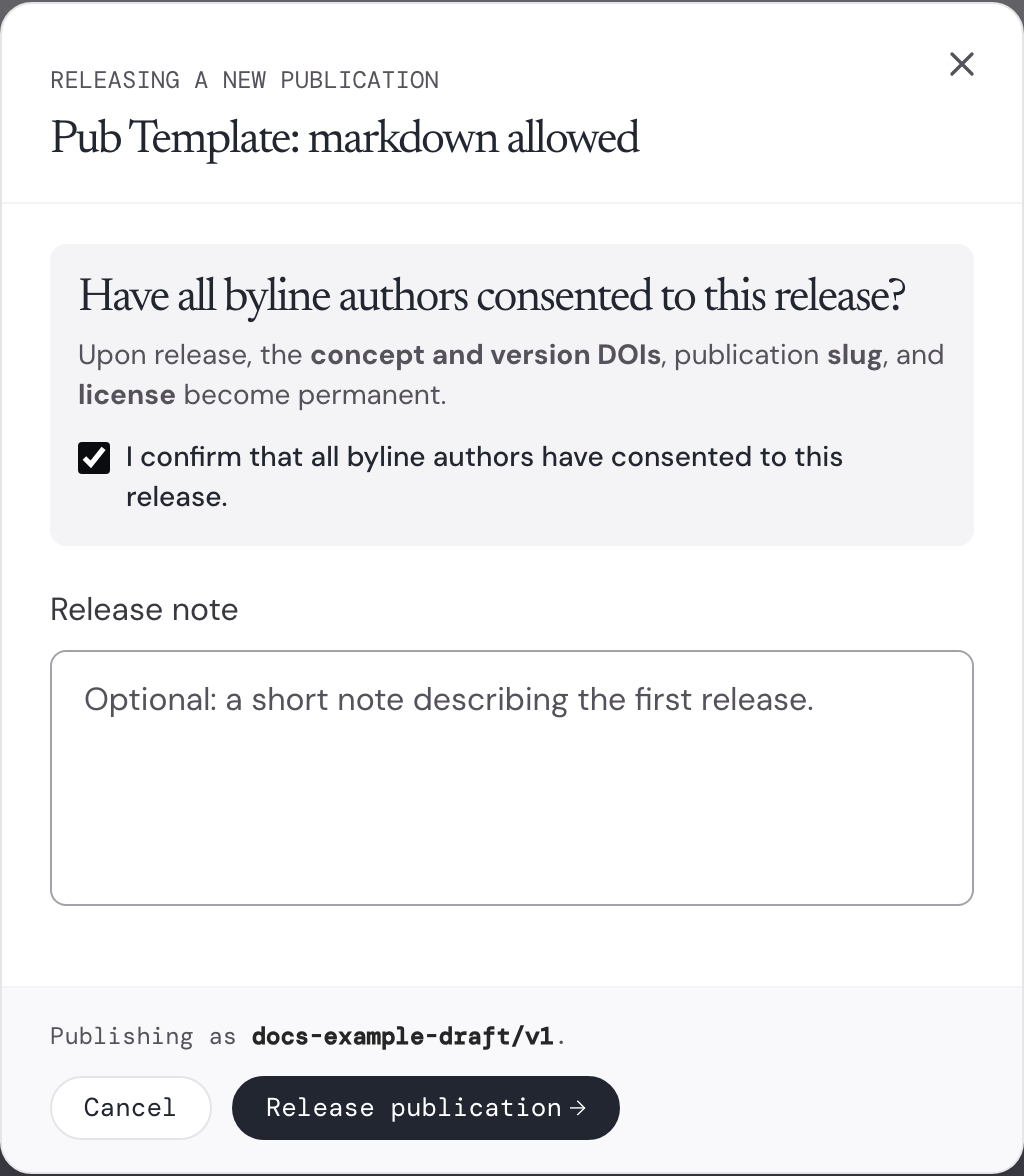
Figure 6:Confirm that the byline authors consent, then release the publication.
When you release:
The publication goes live on The Stacks.
Members of its community are notified.
The license, slug, and DOI are locked.
Its DOIs, if your organization mints them, become public.
To change the publication after release, publish a new version; see Versions and DOIs.